Key takeaways
- AI email automation reads each incoming message, classifies it, extracts the details, and then routes it, drafts a reply or triggers an action in another system.
- Start with a small, clear taxonomy of email types and one action per type. Add categories only when the data shows a real need.
- Draft first, send later: let people approve AI-written replies until the measured quality justifies sending some types automatically.
- Treat every email as untrusted text. Instructions inside a message must never change what the workflow does.
- Use push notifications from Gmail or Microsoft Graph so the workflow reacts to new mail as it arrives, and plan for subscription renewals.
AI email automation reads every message that arrives in a business inbox, works out what kind of message it is, pulls out the details that matter and then does something useful with it. It might route the email to the right team, draft a reply for a person to approve, send a routine answer, or start an action in another system, such as logging an invoice or updating an order. Messages it cannot handle confidently go to a person with a summary.
This post covers the pipeline, a starter taxonomy for a shared inbox, three inbox-driven systems BufferSol has built, and the controls that keep email automation safe. For the wider design approach, see our guide to AI workflow automation.
The five-step email pipeline
- 01ReceiveA push notification from Gmail or Microsoft Graph starts a workflow run for the new message.
- 02ClassifyAn AI step assigns one category from a fixed list, with a confidence score.
- 03ExtractA second step pulls out the fields that category needs: order number, invoice, dates, contact.
- 04ActCode routes the message, looks up records, drafts a reply or triggers a downstream workflow.
- 05ReviewLow-confidence or sensitive messages go to a person with a summary; every step is logged.
Source: BufferSol workflow design
BufferSol Technologies · buffersoltech.com
Classification is the core of the pipeline, and it is a well-understood pattern. Anthropic's Building effective agents describes routing as a workflow that "classifies an input and directs it to a specialized followup task," and gives customer service as the example: general questions, refund requests and technical support each go to a different downstream process. A shared inbox works the same way.
A starter taxonomy for a shared inbox
The most common mistake is starting with too many categories. Begin with a short list where each category maps to exactly one action, and add more only when the misrouted or "other" messages show a real gap.
| Typical signals | What the workflow does | |
|---|---|---|
| Order or account question | Order number, delivery, account change | Looks up the record and drafts or sends an answer |
| Invoice or billing document | Attachment from a supplier, amounts, invoice number | Starts the invoice-processing workflow |
| Sales enquiry or reply | Pricing, demo, meeting request, reply to outreach | Logs it in the CRM and routes to the right rep, or proposes times |
| Complaint or escalation | Strong negative tone, repeated contact, legal language | Routes to a senior person immediately with a summary |
| Supplier or partner update | Shipment changes, price lists, account details | Extracts the change and sends it for review |
| Spam or irrelevant | Marketing, newsletters, automated notices | Archives or labels it, with no reply |
| Other | Anything that fits no category confidently | Goes to a person; reviewed weekly to improve the taxonomy |
Source: BufferSol starter taxonomy; adapt categories to your own inbox
BufferSol Technologies · buffersoltech.com
Two rules keep the taxonomy useful. Every category needs a clear owner and a defined action. And the "other" bucket is not a failure: it is the data that tells you which category to add next.
Three inbox-driven systems we have built
Email is the trigger for several of our builds, each with a different job:
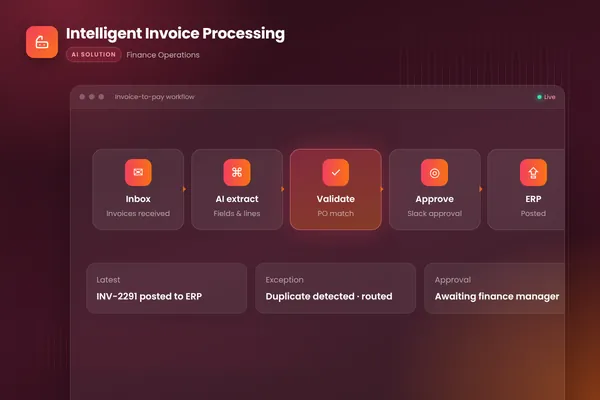
Invoices. In our intelligent invoice processing workflow, the system watches the invoices inbox, extracts every field from PDFs, scans and email bodies with document AI, matches lines to purchase orders, routes approvals in Slack and posts approved invoices to the accounting system. Mismatches go to a review queue with the reason written out.
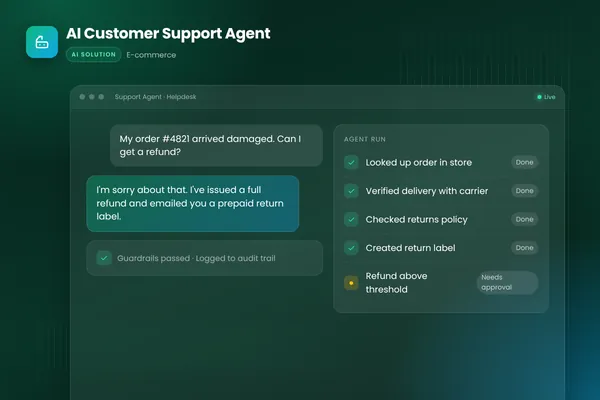
Customer support. Our AI customer support agent works in the helpdesk across chat and email. It understands the request, checks the order and the carrier, creates returns within policy and replies in the brand's tone. Refunds above a set threshold and unusual cases go to a person with a summary and a suggested reply.
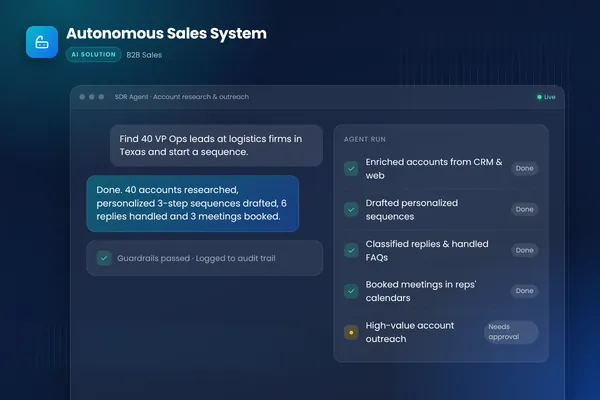
Sales replies. In our autonomous sales system, an inbox agent classifies replies to outreach, handles objections and common questions, proposes meeting times and hands warm leads to reps. High-value accounts need human approval before anything is sent.
In each of the three, the email is read and classified, the details are extracted and checked, and only then does anything happen in another system.
Draft first, then send
For replies, we recommend three stages:
- Draft only. The AI writes a reply and a person approves, edits or rejects it. Record which one.
- Auto-send for proven types. Once a reply type is consistently approved unchanged on real traffic, let the workflow send that type automatically, with sampling for review.
- Keep judgment with people. Complaints, legal or regulatory topics, anything involving money beyond your limits, and any message the classifier is unsure about.
The approval record from stage one is the best evidence you will have for deciding what to automate in stage two.
Event-driven, not polling
Checking an inbox every few minutes wastes requests and delays responses. Both major email platforms can notify your workflow when new mail arrives.
The Gmail API "provides server push notifications that let you watch for changes to Gmail mailboxes," and uses Google Cloud Pub/Sub to deliver them, according to Google's guide to push notifications with the Gmail API.
Microsoft Graph change notifications follow "an event-driven model where customers receive alerts when changes occur instead of them polling." One practical detail matters: subscriptions expire. For Outlook messages, Microsoft lists a maximum subscription lifetime of 10,080 minutes, just under seven days, so your workflow must renew subscriptions before they lapse or new mail will silently stop arriving.
The messy parts of real email
Real inboxes are less tidy than a demo. Plan for these from the start:
- Threads. A reply often quotes the whole conversation below it. Classify the newest message, but give the AI the thread so it understands context, and strip signatures and disclaimers first.
- Several requests in one email. "Where is my order, and can I change the address on the next one?" is two tasks. Let the classifier return more than one category, and handle each separately.
- Attachments. Invoices, purchase orders and forms often arrive as PDFs or images. Route them to a document-extraction step rather than asking the classifier to read them.
- Languages. If you serve customers in several countries, test classification and replies in each language you support, and decide which languages go straight to a person.
- Forwarded and internal mail. A colleague forwarding a customer email changes who the sender is. Detect forwards so the workflow acts on the original customer, not your colleague.
What to measure
Track these from the first week, on real traffic:
| Measure | Why it matters |
|---|---|
| Classification accuracy by category | Shows which categories are clear and which overlap |
| Share of messages in "other" | Tells you where the taxonomy has gaps |
| Draft approval rate, unchanged | The evidence for switching a reply type to automatic |
| Time to first response | What customers and suppliers actually notice |
| Messages escalated, and why | Shows where people still add the most value |
| Errors caught by checks | Shows the controls are working |
Review these numbers with the inbox owner every week for the first month. They decide what to automate next and what to leave with people.
Controls that keep email automation safe
Email is written by outsiders, so every message is untrusted input. The OWASP Top 10 for LLM applications ranks prompt injection first, and an email is the easiest way to attempt it. Build these controls in from the start:
- Treat message content as data. Text in an email must never change the workflow's instructions or permissions.
- Give each step only the access it needs. The classifier needs no write access to anything.
- Check extracted details against records before acting on them: does the order exist, does the sender match the account?
- Never change payment details, passwords or account ownership based on an email alone. Route those requests through a verified process.
- Log every message, classification, action and reply, so any outcome can be explained.
- Set limits on how many automatic replies can be sent per hour, so a loop or an attack cannot flood your customers.
How to start
Export a few hundred recent emails from one shared inbox, label each with the category and the action a good employee would take, and use that set to test classification before building anything else. It shows quickly which categories are clear, which overlap and how large the "other" bucket really is. Our autonomous workflows team can run that test with you, and our AI agent team builds the reply and action steps. You can also talk to an engineer about your inbox.
Frequently asked questions
Can AI reply to customer emails automatically?
Yes, for well-defined request types where the answer comes from your own records and policies, such as order status or simple account questions. Start by having the AI draft replies that a person approves, measure how often drafts are sent unchanged, then switch the most reliable types to automatic sending. Keep complaints, legal matters and anything unusual with people.
How accurate is AI email classification?
It depends on how clear your categories are and how varied your email is, so measure it on your own inbox rather than trusting a general figure. Label a few hundred real past emails, run the classifier on them and check the results per category. Categories that overlap or depend on information outside the email are where errors concentrate.
Is it safe to let AI read company email?
It can be, with the right design. Limit the workflow to the mailboxes it needs, keep personal data handling within your data protection agreements, log every action, and never let text inside an email act as an instruction. Prompt injection, where a message tries to redirect the AI, is the top risk on the OWASP list for LLM applications, so test for it before launch.
Sources
- Configure push notifications with the Gmail API, Google for Developers
- Set up notifications for changes in resource data, Microsoft Learn
- Building effective agents, Anthropic
- 2025 Top 10 Risk & Mitigations for LLMs and Gen AI Apps, OWASP Gen AI Security Project
Cite this article
BufferSol Editorial Team (2026). AI Email Automation: How AI Can Triage, Answer and Act on Business Email. BufferSol Technologies. https://buffersoltech.com/blog/ai-email-automation
BufferSol Editorial Team
AI & software engineering team
Senior engineers, AI specialists and product leads at BufferSol Technologies who design, build and run AI agents, autonomous workflows and custom software for companies in the US, UK and Europe.